




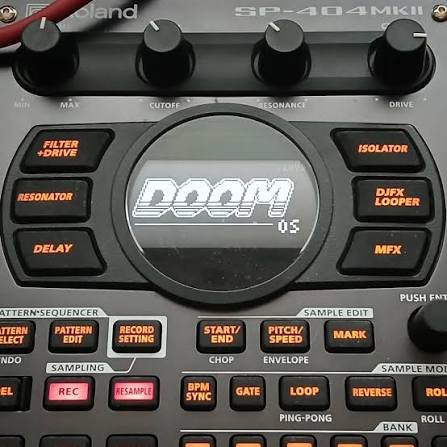
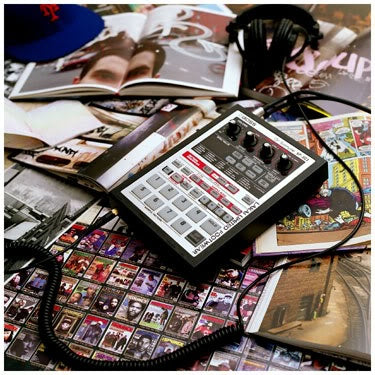
DOOM OS has completely changed the way I use my SP-404MKII.
Before installing it, I already loved the SP for chopping, resampling, effects and getting ideas moving quickly. But since installing DOOM OS, the machine has become something different for me.
I use it every day.
Not just to process sounds. Not just to add effects.
I can start a beat inside the SP-404MKII, build the drums, sequence samples, add instruments, arrange the idea, mix the tracks, automate effects, bounce sections and stay inside the same box until the beat is finished.
And the biggest difference is simple:
making beats feels much easier.
DOOM OS does not remove the original Roland workflow. It adds another production layer on top of it. You can open DOOM OS when you want the graphical sequencer, mixer, instruments or automation, then leave it and return to the normal SP-404MKII interface whenever you want.
At the time of writing, the current release is DOOM OS 0.7.2 — build 359C, released on October 30, 2026 and built around Roland firmware 5.52.
This is my complete guide to installing it, understanding it and actually using it to make beats from beginning to end.
The Short Answer
DOOM OS is an unofficial custom firmware for the Roland SP-404MKII created by Klangfeld Labs.
It adds a much more visual and groovebox-style production workflow to the SP, including:
- graphical pattern sequencing;
- piano roll editing;
- live recording with rehearsal mode;
- quantize and swing;
- pattern editing tools;
- mixer with realtime meters;
- 3-band EQ per pad;
- sidechain controls;
- FX automation;
- 20 instrument engines;
- 11 drum kits;
- arpeggiator;
- parameter locking;
- bounce in place;
- live waveform display;
- undo and redo;
- interactive help;
- custom shortcuts.
For me, the biggest change is not any one feature. It is that the SP-404MKII now feels much easier to use as the main machine for a complete beat.
What Is DOOM OS?
DOOM OS is a heavily modified version of the SP-404MKII firmware developed by Klangfeld Labs.
The original idea was to replace the limitations of the traditional TR-REC-style workflow with a proper graphical pattern editor and make the SP easier to navigate without memorizing endless button combinations.
The result has grown into something much larger.
DOOM OS now gives the SP a visual sequencer, mixer, EQ, instruments, automation, sidechain editing, parameter locks and several tools that make the machine feel much closer to a modern groovebox while preserving the things that already make the SP special.
Is DOOM OS Official Roland Software?
No.
DOOM OS is unofficial firmware. It is not developed, endorsed or supported by Roland.
That means installing it is your own decision and you should treat it like any other custom firmware:
- back up important projects;
- back up samples you cannot replace;
- keep the original Roland firmware available;
- follow the installation instructions carefully;
- remember that DOOM OS is still actively evolving.
I personally use it every day, but my positive experience does not change the fact that it is unofficial software.
Current Version: DOOM OS 0.7.2
The current version at the time of writing is:
DOOM OS 0.7.2 — build 359C
Release date:
October 30, 2026
It is based on:
Roland firmware 5.52
The 0.7 generation was a major step forward because it introduced the instrument system, including 20 sound engines and 11 drum kits.
Version 0.7.1 then added instrument preview, switching instruments while keeping the existing notes, and Bounce in Place to empty pads.
Version 0.7.2 fixed several instrument and track issues, including GATE behavior, instrument browsing during playback and deleted tracks reappearing in certain situations.
How to Install DOOM OS on SP-404MKII
DOOM OS does not distribute Roland's firmware directly.
Instead, you download the compatible official Roland firmware and patch the required firmware file locally using the DOOM OS web patcher.
What You Need
- Roland SP-404MKII;
- SD card;
- official Roland firmware 5.52;
- a computer;
- the DOOM OS web patcher.
Step 1 — Back Up Your Data
Do this before touching the firmware.
Back up anything important:
- projects;
- samples;
- patterns;
- custom material.
Step 2 — Download Roland Firmware 5.52
Download the official SP-404MKII system update from Roland and unzip it.
The file required by the DOOM OS patcher is:
SP404MKII_APP1.bin
The other firmware file is not required for the patch.
Step 3 — Patch the Firmware
Open the official DOOM OS patcher from Klangfeld Labs.
Load SP404MKII_APP1.bin.
The patcher checks and modifies the file locally in your browser. The patching process itself does not require uploading the firmware file to a remote server.
Step 4 — Copy the Patched File to the SD Card
Copy the patched SP404MKII_APP1.bin to the root of your SD card.
Step 5 — Install It on the SP-404MKII
- Insert the SD card into the SP.
- Hold SHIFT while switching the SP on.
- Wait for the updater menu.
- Press the VALUE knob.
- Let the update finish.
- Switch the SP off and on again.
DOOM OS is now installed.
How to Open and Close DOOM OS
This is the first shortcut to learn:
REMAIN + SUB PAD
Hold REMAIN and press SUB PAD.
DOOM OS opens from almost any screen.
To close DOOM OS and save your changes:
EXIT
You immediately return to the normal SP-404MKII workflow.
Why DOOM OS Changed the SP for Me
The biggest improvement for me is visibility.
The stock SP workflow is powerful, but a lot of information lives behind pad combinations, modes and muscle memory.
DOOM OS puts much more of the beat directly on the display.
I can see the pattern.
I can see the notes.
I can see the mixer.
I can see the EQ curve.
I can see effect automation.
I can see the waveform.
That reduces friction.
And when I am making music, reducing friction matters more to me than having another hundred features.
The Graphical Pattern Sequencer
The main DOOM OS view is the graphical pattern grid.
Instead of thinking about the pattern only through pads and menus, you can see tracks and steps directly on screen while the beat plays.
The pads still matter.
The SP still feels tactile.
But now the display gives you a visual map of what you are doing.
This is probably the single biggest reason I find beatmaking easier with DOOM OS.
Creating Your First Pattern
Step 1 — Open DOOM OS
REMAIN + SUB PAD
Step 2 — Create a New Pattern
Hold PATTERN SELECT and press an empty pad.
Step 3 — Add a Track
Hold SUB PAD and tap the pad containing the sample you want to use.
Release SUB PAD and that sound becomes a track in the pattern.
Step 4 — Add Steps
Select the track and tap pads 1–16 to turn steps on or off.
Step 5 — Start Playback
Press PATTERN SELECT.
You now have a running pattern that can be edited while it plays.
Editing Individual Steps
Hold a step and use the CTRL knobs to change how that individual note behaves.
The documented controls are:
- CTRL 1 — Velocity
- CTRL 2 — Length
- CTRL 3 — Timing / Nudge
You can also hold the step and use SHIFT + CTRL 1 to adjust its pitch.
For boom bap this is incredibly useful.
You can push a snare slightly away from the grid, lower the velocity of ghost notes or make individual notes longer without rebuilding the entire sequence.
The Piano Roll
Press the VALUE knob to open the piano roll.
This is one of the features that makes melodic editing much easier than the traditional SP workflow.
You can see note pitches visually and edit them inside the sequence.
For bass lines, pitched samples and instruments, this is a major improvement.
Live Recording and Rehearsal Mode
DOOM OS is not only a step sequencer.
You can perform parts live.
Press REC once to enter rehearsal mode.
That lets you play without recording.
Press REC again and the performance is recorded.
This is exactly the kind of workflow I want from hardware.
I can practice the idea first, then record it when the groove feels right.
Recording Modes
DOOM OS supports several recording modes.
Single
Useful when focusing on one selected sound.
Multi
Useful for performing different tracks or sounds from the pads.
Chromatic
Useful for playing a sample or instrument melodically.
The recording settings also let you control quantize, swing, velocity and note length behavior for newly recorded notes.
Quantize and Swing
Press SHIFT + PATTERN EDIT to reach the NEW NOTES settings.
This lets you control how new notes are recorded, including quantization and swing.
For the music I make, I rarely want everything perfectly locked to the grid.
I prefer to use quantization as a reference and then let timing, velocity and small nudges create the pocket.
Pattern Tools
Press PATTERN EDIT to open the pattern tools.
DOOM OS currently provides eight main tools:
- QUANT — quantize notes;
- SWING — add swing;
- SHIFT — move notes by steps;
- DOUBLE — double pattern length;
- HALVE — halve pattern length;
- REVERSE — reverse the note order;
- HUMAN — humanize timing and velocity;
- TRANSP — transpose.
You can apply these tools to the complete pattern or to one selected track.
Humanize for Boom Bap
Humanize is particularly useful for the kind of drums I make.
The goal is not to make the beat random.
The goal is to create small imperfections that stop the sequence feeling mechanical.
I normally prefer subtle changes.
A little variation in velocity.
A little movement in timing.
Enough to change the feel without destroying the groove.
Built-In Instruments and Drum Kits
DOOM OS 0.7 introduced 20 sound engines and 11 drum kits.
The documented instrument families include:
- BASS;
- POLY;
- FM;
- WAVE;
- MALLET;
- PERC.
This is a major change because the SP no longer has to rely entirely on preloaded samples for every musical element.
I still think of the SP as a sample-first machine.
But now I can create a bass line or additional melodic layer without immediately reaching for another piece of hardware.
How to Add an Instrument Track
Hold SUB PAD and tap an empty pad.
The instrument browser opens.
You can browse the available sounds and, in the current 0.7 generation, preview instruments before selecting them.
This makes it much faster to find something that fits while the beat is already running.
Instrument Editor
On an instrument track, press:
START/END
This opens the instrument editor.
From there you can navigate through the instrument's parameter sections and adjust the sound directly.
You are not locked into the preset exactly as it loads.
Change Instruments Without Losing Your Notes
Version 0.7.1 introduced one of the most useful instrument features.
Inside the instrument editor, press REMAIN and turn the encoder to audition other instruments while keeping the existing sequence.
The notes stay where they are.
The sound changes.
This is a small feature that makes sound selection dramatically faster.
Parameter Locks
Parameter locking lets different steps of the same track use different instrument settings.
That means one sequence can evolve without requiring a new track for every variation.
For example:
- one note with a darker filter;
- another with a different decay;
- another with a more aggressive setting;
- another with a completely different parameter value.
This is especially powerful for creating movement inside short patterns.
Arpeggiator
DOOM OS also includes an arpeggiator.
The ARP workflow lets you generate note movement using parameters such as rate, gate, key, scale and octave, then print that result into the track if you want to keep it.
I like this less as a traditional synth feature and more as a source of new material.
Create something.
Print it.
Resample it.
Then make it sound nothing like the original arpeggio.
The Mixer
Hold RECORD SETTING for around 0.6 seconds to open the mixer.
Each track appears as a channel strip.
The main controls are:
- CTRL 1 — Pan
- CTRL 2 — Bus
- CTRL 3 — Level
You also get realtime level meters.
This sounds simple, but it changes the experience of mixing on the SP.
I can finally see the relationship between the different tracks while I balance them.
Mute and Solo
Inside the mixer you can quickly mute or solo tracks.
For track solo, the current 0.7.2 workflow uses:
REMAIN + the track's pad
This is extremely useful when cleaning up drums, bass, samples and textures.
3-Band Parametric EQ
DOOM OS gives pads their own 3-band EQ.
Inside the mixer, press PITCH/SPEED to show the EQ display for the selected track.
You can adjust:
- LOW;
- MID;
- HIGH.
Advanced control also gives access to:
- gain;
- frequency;
- Q.
Up to sixteen pads can have an active EQ at the same time.
For me, the best use is not extreme sound design.
It is creating space.
Remove unnecessary low end from the sample.
Clean a drum.
Make room for the bass.
Small moves usually do enough.
Sidechain
DOOM OS adds a visual sidechain screen based around the SP's buses.
You can choose:
- the source bus;
- the target bus;
- threshold;
- ratio;
- release;
- output gain.
For example, you can use the kick bus as the source and turn down the bass or sample bus when the kick hits.
I do not need it to create an exaggerated pumping effect.
I use it to create a little more space and clarity.
FX Automation
Press:
SHIFT + MARK
to open FX Automation.
This gives you a visual editor for recorded effect movements.
You can inspect and change effect parameter values step by step.
For me, this is perfect for:
- filter movement;
- delay throws;
- transitions;
- texture changes;
- making repeated sections evolve.
The SP is already famous for its effects.
DOOM OS makes those effects easier to integrate into a repeatable arrangement rather than relying only on a one-time live performance.
Live Waveform Display
Press:
SHIFT + START/END
to show the live waveform display.
You can view the output or the selected track's waveform.
It is another small example of DOOM OS exposing information visually that would otherwise be harder to understand at a glance.
Bounce in Place
Version 0.7.1 added Bounce in Place.
Select a track and press:
RESAMPLE
To bounce everything you hear instead, use:
SHIFT + RESAMPLE
You can choose between:
- CUT
- TAIL
- LOOP
Then select an empty pad and start the bounce.
For a track bounce, DOOM OS can replace the existing sequence with a note triggering the newly bounced sample.
This is one of my favorite parts of the current workflow.
Why Bounce Matters So Much on an SP
You can take:
samples + instruments + effects + automation + mixing
and turn the result into:
one new sample.
Then:
Pitch it → Chop it → Process it → Resample it → Rearrange it
This is exactly where DOOM OS and the traditional SP workflow meet.
Resampling Is Still the Heart of the SP
I do not want DOOM OS to turn the SP into a laptop.
That is not why I use it.
The part I love is that it gives me modern editing tools while preserving the SP mentality.
Build something.
Process it.
Bounce it.
Resample it.
Chop it again.
Destroy it.
Rebuild it.
That is still the heart of the machine for me.
My Complete DOOM OS Beat Workflow
This is roughly how I now use the SP-404MKII from the beginning of a beat to the end.
1. Load My Sounds
I start with a palette:
- drums;
- melodic samples;
- bass;
- textures;
- FX.
2. Open DOOM OS
REMAIN + SUB PAD
3. Create a Pattern
I start a fresh sequence and establish the basic length and tempo.
4. Build the Main Sample Idea
I normally want the melodic idea to tell me what the drums need to do.
I sequence the sample, chops or resampled material until the main loop feels right.
5. Add Drums
Kick.
Snare.
Hat.
Percussion.
I focus on the pocket before doing anything complicated.
6. Adjust the Groove
Velocity.
Timing.
Note length.
Swing.
Humanize if it helps.
7. Add Bass
I can use a sample or one of the DOOM OS instruments.
The piano roll makes this much easier than it used to be for me on the SP.
8. Add Texture
Noise.
Additional chops.
Atmosphere.
Percussion.
Whatever the beat needs.
9. Mix
I open the mixer and balance levels, panning and buses.
If something is fighting another element, I use the EQ instead of immediately replacing the sound.
10. Add Automation
Filters.
Delay.
Transitions.
Effect movement.
11. Bounce
When something is working, I often turn it into new sample material.
12. Resample Again
This is where the beat starts becoming less predictable.
I resample, pitch, rechop and process the result.
13. Finish the Beat
This is the important part.
Since installing DOOM OS, I do not feel like I need to leave the SP to finish an idea.
I can start the beat there and I can finish it there.
Using STATIC BLOOM With DOOM OS
This workflow fits perfectly with the way I built STATIC BLOOM — SP-404MKII Project Pack.
STATIC BLOOM is not just a folder of WAV files.
It is a complete SP-404MKII project designed to load into the machine and start creating immediately.
It includes:
- 160 sounds;
- 10 fully loaded banks;
- 32 native patterns;
- 8 Pattern Chains;
- grimey drums;
- drum breaks;
- soulful melodic material;
- darker cinematic sounds;
- bass;
- keys;
- textures;
- experimental resampled material.
That means I can load STATIC BLOOM, open DOOM OS and already have a complete palette ready for the workflow described in this guide.
My STATIC BLOOM + DOOM OS Workflow
1. Load STATIC BLOOM
The banks are already populated.
2. Find a Melodic Starting Point
I normally begin with one of the softer soul, jazz, key or cinematic sounds.
3. Create a New DOOM Pattern
Open DOOM OS and start a fresh sequence.
4. Build the Main Flip
Sequence or rechop the source until it feels like something new.
5. Add the Dirtier Drums
Kick.
Snare.
Break.
Hat.
6. Add Bass
Use the included material or a DOOM OS instrument.
7. Mix Inside DOOM OS
Balance the tracks and use EQ only where it actually improves the beat.
8. Use the SP Effects
This is where things start moving away from the original material.
9. Automate
Create movement with effect automation.
10. Bounce
Turn the section into new sample material.
11. Rechop the Bounce
Now you are working with something that did not exist in the original project.
That is exactly the point.
Why STATIC BLOOM Works Well With This Workflow
The contrast inside STATIC BLOOM is intentional.
The drums are grimey and aggressive.
The melodic side is softer, with soul, keys, cinematic textures and more atmospheric material.
That makes it easy to create a melodic base and then put harder drums underneath it.
The existing patterns and Pattern Chains can also be treated as source material rather than finished beats.
Change them.
Resample them.
Destroy them.
Build something new.
EXPLORE STATIC BLOOM — SP-404MKII PROJECT PACK
Essential DOOM OS Shortcuts
| Action | Shortcut |
|---|---|
| Open DOOM OS | REMAIN + SUB PAD |
| Close and save | EXIT |
| Play / stop | PATTERN SELECT |
| New pattern | PATTERN SELECT + empty pad |
| Add track | Hold SUB PAD + tap pad |
| Add instrument track | Hold SUB PAD + tap empty pad |
| Piano roll | Press VALUE |
| Record / rehearse | REC |
| Pattern tools | PATTERN EDIT |
| New note settings | SHIFT + PATTERN EDIT |
| Mixer | Hold RECORD SETTING |
| Instrument editor | START/END |
| Waveform | SHIFT + START/END |
| Undo | SHIFT + PATTERN SELECT |
| Redo | REMAIN + PATTERN SELECT |
| Help Mode | Hold SHIFT for 3 seconds |
| FX Automation | SHIFT + MARK |
| Bounce selected track | RESAMPLE |
| Bounce everything you hear | SHIFT + RESAMPLE |
Help Mode
Hold SHIFT alone for three seconds.
DOOM OS enters Help Mode.
Now press a button, pad or control and the display tells you what that control does on the current screen.
This is brilliant.
One of the biggest barriers with deep hardware is remembering shortcuts.
DOOM OS can teach you the interface directly on the machine.
Boot Directly Into DOOM OS
If you end up using DOOM OS as often as I do, you can configure the SP to open it automatically at startup.
Leave DOOM OS and go to:
SHIFT + Pad 13 → SYSTEM → DOOM OS tab
Then set:
Boot to DOOM → YES
Now DOOM OS opens automatically after the SP starts.
Custom Shortcuts
The SP's SYSTEM screen also includes a SHORTCUT tab for DOOM OS custom shortcuts.
You can configure up to eight shortcuts of your own.
This is useful once you understand which functions matter most in your personal workflow.
Can You Return to the Normal SP-404MKII Workflow?
Yes.
Press EXIT and you return to the standard SP interface.
DOOM OS works alongside the normal SP workflow rather than forcing you to abandon it.
If you ever want to remove DOOM OS completely, you can reinstall the official Roland firmware using Roland's normal firmware update procedure.
Is DOOM OS Safe?
It is unofficial firmware.
That needs to stay clear.
It has been reliable enough for me to use every day, but that does not make it an official Roland release.
Before installing:
BACK UP EVERYTHING IMPORTANT.
Also remember that development is moving quickly.
The public alpha appeared at the end of September 2026 and the 0.7 generation arrived only a month later with a much larger feature set.
That speed is exciting, but it also means behavior can change between versions.
DOOM OS vs Stock SP-404MKII
| Feature | Stock SP-404MKII | DOOM OS |
|---|---|---|
| Sampling | Yes | Uses the SP workflow |
| Roland FX | Yes | Yes |
| Pattern sequencing | Yes | Yes |
| Graphical step grid | Limited | Yes |
| Piano roll | Limited | Yes |
| Visual mixer | Limited | Yes |
| Per-pad 3-band EQ | No comparable workflow | Yes |
| Built-in instrument system | No comparable workflow | Yes |
| Parameter locks | No comparable workflow | Yes |
| Arpeggiator | No comparable workflow | Yes |
| Visual FX automation editor | No comparable workflow | Yes |
| Visual sidechain editor | Limited | Yes |
| Bounce in place | Traditional resampling | Dedicated workflow |
| Interactive help | No | Yes |
I do not really see the stock system and DOOM OS as competitors.
I use both.
DOOM OS gives me structure, sequencing and visibility.
The stock SP workflow gives me the sampling, effects and resampling mentality that made me want the machine in the first place.
Together, they are much more powerful.
Is DOOM OS Worth Installing?
For me:
absolutely.
It has changed how often I use the SP-404MKII.
More importantly, it has changed what I use it for.
I do not only reach for the SP when I want an effect, texture or quick resample.
I reach for it when I want to make a beat.
And I use it from the first idea until the beat is finished.
The beats feel easier to build.
The workflow feels clearer.
I spend more time making music and less time thinking about how to make the machine do what I want.
That is probably the biggest compliment I can give DOOM OS.
Who Should Try DOOM OS?
I think DOOM OS makes the most sense if:
- you already like the SP-404MKII but find the pattern workflow difficult;
- you want a more visual way to sequence beats;
- you want to finish more of the beat inside the SP;
- you want better control over mixing and automation;
- you like resampling but want more structure before you resample;
- you are comfortable experimenting with unofficial firmware.
If you only use the SP as an effects box or live performance sampler, you may not need everything DOOM OS adds.
But if you want to make complete beats on the hardware, I think it is extremely interesting.
Keep Learning
If you are still deciding how the SP fits into your setup, read MPC vs SP-404MKII for Boom Bap: Which Workflow Fits You?.
If you want to go deeper into transforming sample material before sequencing it, read 7 Sample Chopping Techniques Every Hip Hop Producer Should Know.
Final Thoughts
DOOM OS is one of the most interesting things to happen to the SP-404MKII.
It does not remove what makes the SP special.
It gives me a faster way to reach those things.
I still have:
- sampling;
- resampling;
- effects;
- pads;
- imperfection;
- experimentation.
But now I also have:
- a graphical sequencer;
- piano roll;
- mixer;
- instruments;
- parameter locks;
- automation;
- EQ;
- sidechain;
- better editing;
- bounce in place.
And suddenly the SP feels much more capable of carrying a beat from the first idea to the finished version.
That is exactly how I use it now.
Every day.
LOAD. PLAY. CREATE.

Share:
MPC 3.10 Update: What's New in Desktop and Standalone?