






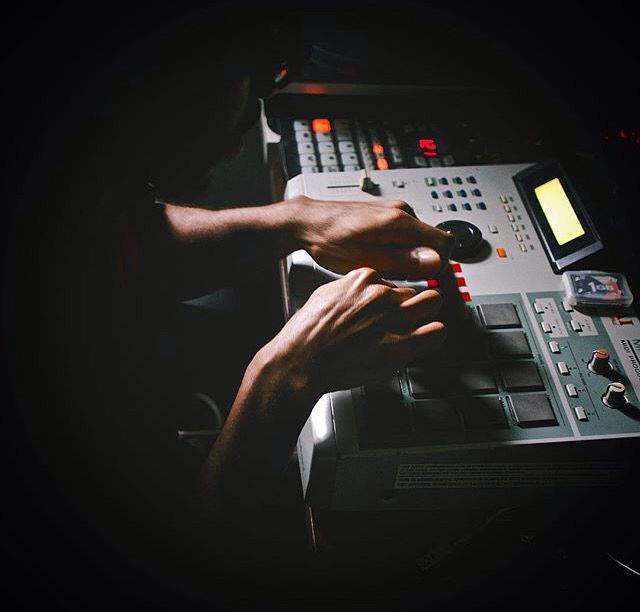
An MPC expansion is a sound pack built specifically for the Akai MPC workflow. Instead of giving you only a folder of loose audio files, a proper expansion can include complete drum programs, mapped samples, keygroup instruments, loops, one shots, artwork, and other content that appears inside the MPC Expansion Browser.
The main advantage is speed. You do not have to search through folders, assign every sound to a pad, rebuild programs, or organize the content before you can use it. You open the expansion, load a kit or instrument, and start creating.
This guide explains what an MPC expansion is, how it works, what files it can include, how it differs from a regular sample pack, which MPC devices can use it, and how to install it correctly in standalone hardware and MPC Software.
The Short Answer
An MPC expansion is an organized collection of sounds and programs prepared for the Akai MPC ecosystem.
Depending on the expansion, it may include:
- Drum programs with sounds already mapped to pads.
- Keygroup instruments that can be played chromatically.
- One shots, loops, basses, textures, and effects.
- Sequences, MIDI patterns, or demo projects.
- Expansion artwork and browser information.
- An XPN file for MPC Software.
- A prepared standalone folder for compatible MPC hardware.
- Original WAV files for use outside the MPC.
The exact contents depend on the creator. A drum focused expansion may contain complete kits. A melodic expansion may contain keygroups and loops. A broader production expansion may combine drums, samples, basses, textures, and sequences.
What Makes an MPC Expansion Different?
A regular sample folder gives you audio files. An MPC expansion gives those files a structure inside the MPC workflow.
That structure is what changes the experience.
With loose samples, you normally have to:
- Browse through folders.
- Preview individual sounds.
- Load each sound manually.
- Assign sounds to pads.
- Adjust levels, envelopes, filters, and effects.
- Save the finished program yourself.
With a properly prepared MPC expansion, much of that work has already been completed. The programs are organized, the pad assignments are saved, and the expansion appears as a named collection in the browser.
This does not mean an expansion limits your control. Once a program is loaded, you can replace sounds, change pad assignments, tune samples, adjust envelopes, add effects, resample the kit, or save your own version.
How an MPC Expansion Works
An MPC expansion connects three elements:
- The audio content: WAV files such as kicks, snares, samples, loops, basses, and effects.
- The programs: MPC files that tell the system which sample belongs on each pad or key.
- The expansion structure: the folders, artwork, and metadata that allow the collection to appear correctly in the Expansion Browser.
When you load a drum program, the MPC reads the program file and locates the audio files connected to it. It then places the sounds on the pads with the saved settings.
When you load a keygroup program, the MPC maps one or more samples across a playable note range. This can turn a sampled bass, piano, texture, or instrument into something you can perform chromatically.
The expansion itself is not a new MPC operating system or a separate plugin. It is organized content that works within the MPC environment.
What Is Inside an MPC Expansion?
Drum programs
A drum program is a playable kit built around the MPC pads. Each pad can contain one or more samples, along with its own pitch, envelope, filter, level, pan, mute group, effects routing, and velocity behavior.
A well designed drum program should feel coherent. The kicks should relate to the snares. The hats should sit at usable levels. The pad layout should make sense when finger drumming. You should be able to load the program and understand it quickly.
Keygroup programs
A keygroup program maps sampled notes across the keyboard. It can be used for basses, keys, synths, strings, textures, and other tonal sounds.
Some keygroups use a single sample stretched across a wide range. More detailed instruments use several sampled notes or velocity layers to create a more natural result.
One shots and loops
Many expansions include the original audio content in addition to the prepared programs. These files can include drum hits, melodic samples, percussion, bass notes, vocal textures, transitions, and full loops.
When the raw WAV files are included, you can also load them into Ableton Live, FL Studio, Logic Pro, Pro Tools, Cubase, Maschine, the SP 404, or another sampler. Always check the product page because the included file formats can vary between expansions.
Sequences and MIDI patterns
Some expansions include sequences or MIDI patterns that demonstrate how the sounds can be used. These can be useful for learning the kit, testing the groove, or starting a new idea quickly.
They are optional. An expansion can still be complete without them.
Artwork and browser information
The cover image is not only decoration. It helps the expansion appear as a recognizable product inside the MPC browser. A properly organized expansion should have a clear name, artwork, and consistent internal folders.
What Is an XPN File?
An XPN file is a package used to install an expansion into MPC Software on Windows or macOS.
You do not normally open the XPN as if it were a ZIP file. After extracting the original download, you drag the XPN file into MPC Software. The application imports the expansion and adds it to the Expansion Browser.
Once the expansion is installed on the computer, you can use it in MPC Beats, MPC 2, or MPC 3, depending on the compatibility stated by the expansion creator.
You can also export a compatible expansion from MPC Software to external storage for use on standalone hardware.
What Is a Standalone Expansion Folder?
A standalone expansion folder is a version prepared for direct use on compatible MPC hardware without keeping a computer connected.
The usual folder structure is:
SD Card / Expansions / Expansion Name /The complete expansion folder must remain inside an Expansions folder at the root of the SD card, USB drive, or compatible user drive. Do not separate the programs from their samples, and do not place the compressed ZIP on the drive.
When the drive is connected to the MPC, the expansion should appear in the browser with its artwork and programs.
Standalone Mode and Controller Mode
These two modes are often confused.
Standalone mode
In standalone mode, the MPC runs by itself. The computer is not required for making the beat. The expansion must be available from storage that the MPC can access, such as an SD card, USB drive, supported internal user drive, or another compatible storage location.
Controller mode
In controller mode, the MPC hardware controls MPC Software running on a computer. The processing and file access are centered around the computer version of MPC.
An expansion installed through an XPN file can be used directly inside the desktop software. If you later want to use it in standalone mode, you can export the expansion to external storage.
How to Install an MPC Expansion in MPC Software
Use this method when the expansion includes an XPN file.
- Download the expansion.
- Extract the ZIP file completely.
- Open MPC Beats, MPC 2, or MPC 3.
- Locate the extracted file ending in .xpn.
- Drag the XPN file onto the open MPC Software window.
- Confirm the import.
- Wait for the installation to finish.
- Open the Expansion Browser.
- Select the expansion artwork and load a program.
Do not drag the original ZIP into MPC Software. The XPN file must be extracted first.
If the expansion does not appear immediately, close and reopen MPC Software, then check the Expansion Browser again.
How to Install an MPC Expansion Directly in Standalone
Use this method when the creator supplies a prepared standalone folder.
- Download and extract the complete expansion.
- Connect an SD card, USB drive, or compatible user drive to the computer.
- Create a folder named Expansions at the root of the drive.
- Copy the complete named expansion folder inside it.
- Wait until the transfer is complete.
- Eject the drive safely.
- Connect the drive to the MPC.
- Open the Browser and select Expansions.
- Open the expansion and load a program.
The correct structure looks like this:
Your Drive / Expansions / Pack Name /A common mistake is copying only the loose program files or placing the expansion several folders deep. Keep the original internal structure intact.
For a visual step by step process, use the Soul Chemist MPC Installation Guide.
How to Export an Expansion From MPC Software to Hardware
This method is useful when you installed an XPN on the computer and now want the expansion available in standalone mode.
In MPC 2
- Connect the external drive to the computer.
- Open MPC Software.
- Go to File, then Export, then Expansions.
- Select the expansion.
- Select the external drive as the destination.
- Start the export and wait for it to finish.
In MPC 3
- Connect the external drive to the computer.
- Open MPC 3.
- Go to File, then Tools, then Expansion Manager.
- Select Export.
- Choose the expansion and destination drive.
- Start the export and wait for confirmation.
After the export is complete, connect the drive to the MPC and open the Expansion Browser in standalone mode.
Which MPC Models Can Use Expansions?
Modern MPC expansions are generally designed for the current standalone and desktop MPC ecosystem. Depending on the product, that can include models such as:
- MPC Live, Live II, and Live III.
- MPC One and One+.
- MPC X, X SE, and MPC XL.
- MPC Key 37 and Key 61.
- MPC Software, including MPC Beats, MPC 2, and MPC 3.
- Akai Force, when the expansion supports its workflow.
Controller focused models such as MPC Studio, Renaissance, and Touch use expansions through MPC Software rather than as standalone devices.
Compatibility is not identical for every product. Sample based drum and keygroup expansions are usually easier to move between systems than content that depends on a specific plugin, operating system feature, or licensed instrument. Always read the compatibility section before buying.
Can You Use MPC Expansions in a DAW?
Yes, but there are two different methods.
Use MPC Software as a plugin
You can load MPC Software as a plugin inside a compatible DAW, then open the expansion from the MPC browser. This keeps the prepared programs, pad assignments, and MPC workflow.
Use the WAV files directly
When the expansion includes the original WAV files, you can load them directly into another DAW or sampler. This gives you access to the sounds, but not necessarily the MPC program structure.
The second method is useful when you like the content but prefer arranging and mixing outside the MPC.
MPC Expansion vs Sample Pack
The difference is organization and preparation.
A sample pack is usually a collection of audio files. An MPC expansion is designed to appear inside the MPC ecosystem with programs and mapped content.
A sample pack gives you maximum freedom but can require more setup. An expansion gives you a faster starting point while still allowing you to edit every sound after loading it.
Some products include both formats. For example, a Soul Chemist expansion can contain prepared MPC programs plus the original WAV files, giving you the structured MPC workflow and the flexibility to use the sounds elsewhere.
A complete buying guide comparing both formats will be covered separately, so this article can stay focused on how expansions work.
What Makes a Good MPC Expansion?
Clear organization
The folders, programs, and artwork should make sense immediately. You should not have to repair missing paths or search through unrelated content.
Useful pad mapping
The pads should be organized in a way that supports performance. Similar sounds should follow a consistent logic across the kits.
Balanced levels
A kit should not contain one kick that is dramatically louder than every snare and hat. The programs should provide a usable starting point before you begin customizing them.
Coherent sound selection
A good expansion is not simply a large number of unrelated files. The sounds should belong together and support a clear production direction.
Correct compatibility information
The product page should explain whether the expansion includes XPN, standalone files, WAV files, or a combination of formats.
Installation instructions
A short installation guide prevents most support problems and helps the producer reach the sounds quickly.
When an MPC Expansion Is Most Useful
An expansion is especially useful when:
- You want to stay inside the MPC browser instead of searching through external folders.
- You prefer complete kits over building every program from zero.
- You work in standalone mode and want organized content on your drive.
- You use MPC Software inside another DAW.
- You want a consistent sound palette for a project.
- You need a faster starting point without losing the ability to customize the kit.
It is less important when you enjoy building every kit manually or when you only need a few individual samples.
Common Installation Problems
The expansion does not appear in the browser
Check that the expansion folder is inside a root level folder named Expansions. Restart the MPC or software after confirming the folder structure.
The program loads with missing samples
The internal folders may have been separated, renamed, or copied incompletely. Copy the entire expansion folder again without changing its contents.
The XPN will not install
Make sure the downloaded ZIP has been extracted. Drag the XPN file itself into MPC Software.
The artwork appears but the programs do not
Confirm that the program and content folders are present. In the browser, make sure the file filter is not hiding program files.
The expansion works in software but not standalone
The desktop installation does not automatically place the expansion on the hardware. Export it through MPC Software or use the prepared standalone folder supplied with the product.
The sounds work, but a plugin preset does not
Sample based programs and plugin preset expansions are not always the same thing. A preset may depend on a plugin or version that is not available in the current standalone system.
Examples of Different MPC Expansion Types
Complete production kits
The Transmutation Expansion includes 30 complete kits with drums, samples, basslines, and effects, plus more than 600 individual WAV files. It is built for dark, cinematic boom bap and can be used in MPC software and standalone workflows.
Drum focused expansions
Analog Drums: Crate Burn includes 20 ready to use kits and more than 400 sounds, with drum hits, samples, and textures organized for a faster beatmaking workflow.
Multi expansion bundles
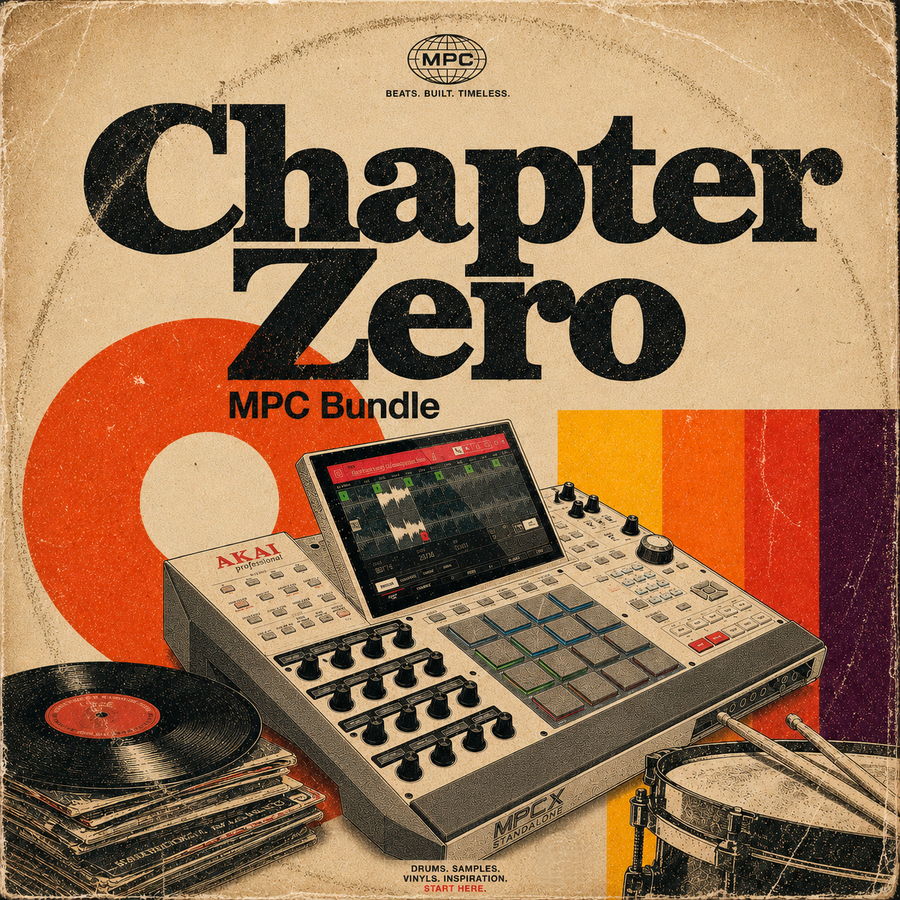
Chapter Zero combines five Soul Chemist MPC expansions with 110 total kits. A bundle is useful when you want several related palettes inside the same overall production style.
Custom expansions
A custom MPC expansion is created around a producer's own references, workflow, and sound direction. It can include custom programs, artwork, browser naming, standalone files, and an XPN installer.
Frequently Asked Questions
Is an MPC expansion the same as a plugin?
No. A standard MPC expansion is organized sound content and programs. Some separate products contain presets for MPC instrument plugins, but those have their own compatibility requirements.
Do I need a computer to use an MPC expansion?
Not when the expansion includes a compatible standalone version. A computer is usually needed for downloading, extracting, and transferring the files, but the MPC can use the expansion without remaining connected to it.
Can I edit the kits after loading them?
Yes. You can change samples, pad assignments, levels, tuning, envelopes, mute groups, filters, effects, and other program settings, then save your own version.
Can I install an XPN directly on standalone hardware?
The normal XPN workflow is to install it in MPC Software and export the expansion to external storage. A creator may also include a separate standalone folder that can be copied directly.
Where should I store expansions?
External storage is usually the cleanest option for standalone use. Keep the expansion inside a root level Expansions folder on the drive.
Can I use the sounds commercially?
That depends on the license supplied by the creator. Soul Chemist expansions are sold as royalty free for use in commercial productions, but you should check the license of every third party product.
Will an expansion work in MPC Beats?
Many XPN expansions work in MPC Beats, but the product must state compatibility. Content that relies on a feature or plugin unavailable in MPC Beats may require another version.
Can I use an MPC expansion in Ableton or FL Studio?
You can use MPC Software as a plugin inside a compatible DAW. When raw WAV files are included, you can also load those files directly into the DAW.
Final Thoughts
An MPC expansion is more than a folder of samples. It is a prepared sound system built around the MPC workflow.
The audio files provide the raw material. The programs organize the sounds. The mapping makes them playable. The artwork and folder structure place the collection inside the Expansion Browser. Together, those elements remove setup and let you move from browsing to beatmaking much faster.
Before choosing an expansion, check what it includes, which MPC versions it supports, whether it works in standalone mode, and whether the original WAV files are supplied.
To explore ready to load collections built for dark boom bap, grimey drums, cinematic samples, and hardware production, visit the Soul Chemist MPC Expansions collection. For installation help, use the complete MPC Installation Guide.


Share:
How to Make Boom Bap Drums: The Complete Guide
Sample Pack vs MPC Expansion: Which One Do You Need?